
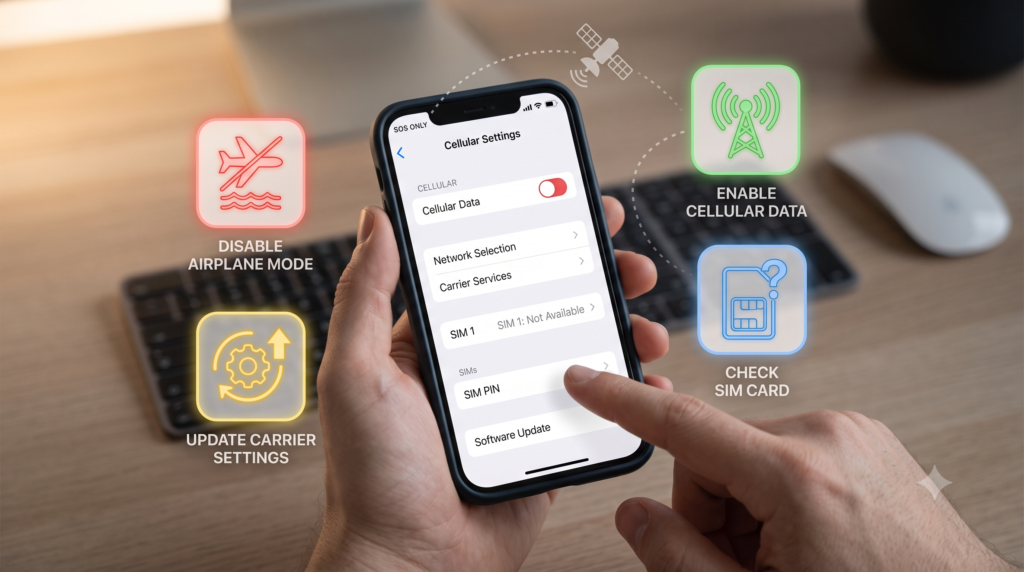
iPhone Stuck on SOS Only? 9 Practical Fixes to Restore Your Cellular Connection
You pull out your iPhone to make a call, send a message, or check directions—and suddenly notice SOS or SOS Only in the top-right corner.
It can be alarming, especially when you are traveling or somewhere unfamiliar. However, the SOS symbol does not necessarily mean your iPhone is completely unusable.
It simply means your iPhone is not connected to your normal cellular network. In some cases, it may still be able to reach emergency services through another available carrier.
Newer iPhones may also provide access to emergency satellite features when cellular and Wi-Fi networks are unavailable.
Here is what the SOS symbol means, why it appears, and the steps you can take to restore your cellular connection.
What Does SOS Mean on an iPhone?
When your iPhone displays SOS or SOS Only, it means your device cannot connect to your regular mobile carrier.
However, your phone may still be able to make emergency calls using another cellular network in the area.
This is different from seeing No Service or Searching. Those messages generally mean your iPhone is not connected to any cellular network.
For supported iPhone models, Apple’s satellite features may also allow users to contact emergency services in areas without traditional cellular coverage.
Depending on your device, location, and available services, satellite connectivity may also help you:
- Contact emergency services
- Send your location to friends or family
- Share important medical information
- Request roadside assistance
- Notify loved ones during an emergency
These capabilities can be extremely valuable for hikers, campers, international travelers, and anyone visiting remote locations.
However, if you are standing in your home, office, hotel, or city center and your phone suddenly enters SOS mode, there is probably a connection problem that needs troubleshooting.

Why Is Your iPhone Showing SOS Only?
Your iPhone may enter SOS mode for several reasons, including:
- Weak or unavailable carrier coverage
- A temporary cellular network outage
- Incorrect SIM or eSIM settings
- An inactive cellular line
- Outdated carrier settings
- An outdated version of iOS
- A damaged or improperly inserted SIM card
- An account or billing problem with your carrier
- Disabled data roaming while traveling internationally
The good news is that many of these problems can be fixed within a few minutes.
1. Turn Airplane Mode On and Off
Start with the simplest solution.
Open the Control Center or go to Settings and turn on Airplane Mode. Leave it on for at least 15 seconds, then turn it back off.
This temporarily disconnects your iPhone from cellular, Wi-Fi, and Bluetooth networks. When Airplane Mode is disabled, the phone attempts to reconnect to your carrier.
For temporary network glitches, this may be enough to remove the SOS symbol.
2. Restart Your iPhone
Yes, the classic “turn it off and back on again” method can still work.
Restarting your iPhone clears temporary software problems and forces the device to reconnect to available networks.
After your phone turns back on, wait a minute or two to see whether your normal carrier name and signal bars return.
3. Check for an iOS Update
An outdated version of iOS can sometimes cause connectivity or carrier compatibility problems.
To check for an update:
- Open Settings
- Tap General
- Select Software Update
- Install any available update
You can also enable automatic updates from this section to help keep your iPhone current.
Before installing an update, connect your phone to Wi-Fi and make sure the battery is sufficiently charged.

4. Check Your SIM or eSIM Settings
If your iPhone supports multiple SIM cards or eSIM plans, confirm that the correct cellular line is enabled.
Go to:
Settings → Cellular
You should see your available mobile plans listed. Select the line you want to use and confirm that Turn On This Line is enabled.
If the line was accidentally turned off, reactivating it may immediately restore your connection.
Using a physical SIM card?
Turn off your iPhone, remove the SIM card, and carefully reinsert it.
Check whether the SIM appears damaged, scratched, bent, or improperly positioned. A damaged SIM may need to be replaced by your carrier.
5. Check for a Carrier Settings Update
Carrier settings help your iPhone communicate properly with your mobile provider’s network.
To check for an update:
- Connect your iPhone to Wi-Fi
- Open Settings
- Tap General
- Select About
- Wait briefly to see whether an update prompt appears
Install the update if one is available.
Carrier settings updates may improve network connectivity, calling features, messaging, and mobile data performance.
6. Confirm That Your Carrier Account Is Active
Sometimes the problem is not your iPhone—it is your mobile account.
Using Wi-Fi or another phone, contact your carrier and confirm that:
- Your account is active
- Your bill is paid
- Your device is not blocked
- There is no outage in your area
- Your SIM or eSIM is properly activated
- Your plan includes service in your current location
Carrier outages can sometimes affect an entire neighborhood, city, or region. In that situation, changing settings on your phone may not solve the issue until service is restored.
7. Check Your Coverage Area
SOS mode can appear simply because your carrier does not have strong coverage where you are located.
This commonly happens inside:
- Parking garages
- Elevators
- Large buildings
- Rural communities
- Mountains and hiking areas
- Underground locations
- Remote highways
Move to an open area, go near a window, or travel a short distance and check the signal again.
If the problem disappears after changing locations, weak carrier coverage was probably the cause.
8. Run Apple’s Diagnostic Tools
If the problem continues, you may be able to run troubleshooting and diagnostic checks through the Apple Support app.
The app can help identify potential problems involving your:
- Cellular connection
- SIM or eSIM
- Device software
- Network settings
- iPhone hardware
You can also use the app to contact Apple Support or schedule service if the issue appears to be hardware-related.
9. Reset Your Network Settings
If none of the earlier fixes work, resetting your network settings may help.
Go to:
Settings → General → Transfer or Reset iPhone → Reset → Reset Network Settings
This will not erase your photos, apps, or personal files.
However, it will remove saved Wi-Fi networks, passwords, VPN configurations, and some cellular settings. You will need to reconnect to your Wi-Fi networks afterward.
Use this option after trying the less disruptive fixes first.

How to Fix SOS Mode While Traveling Abroad
International travel creates another common reason for an iPhone to display SOS Only.
Your phone may not automatically connect to a local partner network, especially if data roaming is disabled.
To check your roaming settings:
- Open Settings
- Tap Cellular
- Select the cellular line you want to use
- Tap Cellular Data Options
- Enable Data Roaming
Be careful when turning on data roaming. Depending on your carrier and plan, international roaming can result in expensive charges.
Always review your carrier’s international coverage and pricing before using mobile data abroad.
Using a Travel eSIM? Check These Settings
Travel eSIMs can provide affordable international mobile data, but they must be configured correctly.
Go to Settings → Cellular and confirm that:
- The travel eSIM is turned on
- The travel eSIM is selected for cellular data
- Data roaming is enabled for the travel eSIM, when required
- The correct network is selected
- Your primary carrier line is turned off if it is causing conflicts
Your iPhone may also offer an option called Allow Cellular Data Switching. This lets the device switch between available plans to maintain connectivity.
However, enabling it while traveling could cause your primary carrier to use international roaming, potentially creating additional charges.
For better cost control, choose one travel data line manually instead of allowing automatic switching.
When Should You Contact Apple?
You should consider contacting Apple Support if:
- Your carrier confirms there is no network outage
- Your account and cellular plan are active
- Your SIM or eSIM works in another phone
- Your iPhone remains in SOS mode in multiple locations
- The problem started after the phone was dropped or exposed to water
- Resetting the network settings did not work
A persistent SOS connection may indicate an antenna, modem, SIM reader, or internal hardware problem.

Aqyreon’s Take
Seeing SOS Only on your iPhone can be frustrating, but it does not automatically mean your phone is broken.
Start with the simplest fixes: toggle Airplane Mode, restart the device, check your cellular line, and install available software or carrier updates.
If the issue appears while traveling, review your roaming and eSIM settings before assuming there is a hardware failure.
Most importantly, understand the difference between a normal cellular connection and emergency connectivity. SOS and satellite features can be valuable safety tools, but they should not be treated as replacements for reliable mobile coverage.
Before traveling to a remote area or another country, prepare your iPhone in advance. Update the software, confirm your mobile plan, test your eSIM, download offline maps, and learn how your device’s emergency features work.
A few minutes of preparation could make a major difference when regular cellular service disappears.